1. How to stop the agent BEFORE it does damage
Tommy comes to Alex with a ready TASK_SPEC and the most painful question stuck in his head after the night:
“Listen, okay, I wrote the task. But yesterday it deleted the files — and I found out only when it was already too late. How do I stop it before it does anything? Not after, before.”
“That’s what planning mode is for.” Alex opens the terminal. “The main thing today. Look, here’s how a conversation with the agent usually works: you give it a task, and it immediately goes off to edit files. One move, and it’s already changed them. You only learn what it did after it has already done it. That’s what burned you yesterday.”
“Yeah. It deleted them, and I saw it only after.”
“And in planning mode the order is different. You give the task — and the agent doesn’t touch the code. Instead of edits, it first lays out the plan: which files it intends to touch, in what order, and exactly what it will do in each one. And then it stops. Waits. Not a single edit until you say ‘go ahead.’”
“So first it tells me what it’s going to do, and then it just waits?”
“Exactly. And here’s the important part to understand all the way through,” Alex says slowly. “The window in which you can stop it is now open before the first edit, not after. Yesterday you saw the disaster when the files were already gone — you had to fix ruins. Here you see the intent to delete — when nothing has been deleted yet. Between ‘it is going to’ and ‘it did’ there is a pause, and that pause is yours. That’s where you steer.”
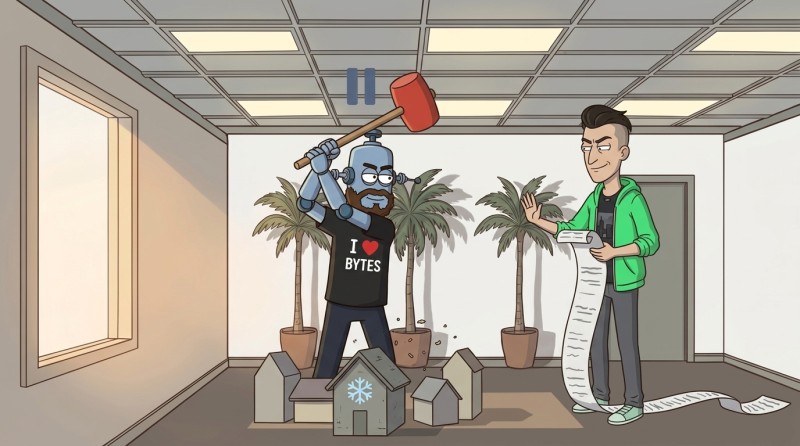
“Sneaky. So it kind of says the plan out loud, and I listen and can jump in.”
“Exactly. And while it’s in this mode, no matter what you see in its plan, nothing changes on disk. You can read the plan calmly, argue with it, edit it — the files stay intact the whole time.”
2. How to turn on planning mode
“Okay, but how do I turn it on?” Tommy is already reaching for the keyboard.
“There are three ways, for different moments. Let’s go one by one.”
First — on the fly, right in the session. You’re already working with the agent, and suddenly you sense: something serious is coming, better slow it down. Press:
Shift+Tab # cycles the agent mode in a loop“One press switches the agent to the next mode, like shifting gears in a car,” Alex explains. “There are several modes, Shift+Tab cycles through them in a loop: normal → edits itself → planning → normal again. I’ll talk about all the modes in a minute; for now you only need one — keep pressing until planning shows up at the bottom.”
Second — with a command, also from the session. If you don’t like guessing by pressing keys, set the mode directly:
/plan # enable planning mode once“One command — and the agent is in planning mode, no keyboard gymnastics. Handy when you know for sure that this task should go through a plan.”
Third — right at the start, before the first word. You already know the task is risky and want to enter under control from the doorway. Then you launch the agent straight in this mode:
claude --permission-mode plan“That’s when you haven’t even given it the task yet, but you’ve already decided: today we work strictly through a plan. The agent opens directly in planning mode.”
“And how do I know I’m really in it and didn’t miss?” Tommy asks reasonably.
“By the status bar at the bottom. The active mode is always labeled there. Planning is on — you see the corresponding label. You don’t guess; you look: the agent is planning only, not touching the code.”
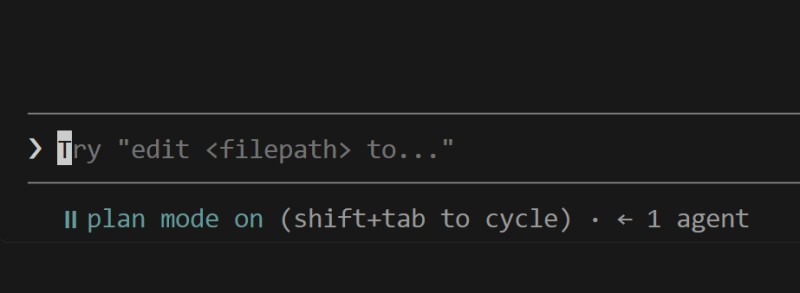
Here Tommy latches onto the main point:
“Listen, but it really won’t touch it? I mean, ‘promised not to touch it,’ and then it’ll just take it and… like last night.”
“Good question. It won’t touch it, and not because it’s honest.” Alex smirks. “In planning mode the agent’s own edit tool is disabled. It literally has no way to change a file: it can read code, figure things out, build a plan — but the hand that edits is tied in this mode. Not ‘the agent promised to wait,’ but ‘the agent can’t, even if it wants to.’ That’s why it’s calm here: it’s not about its good will.”
Now give the task as usual, in words:
Add a new promo area with a campaign banner to the portal storefront.And instead of a ready-made edit you get a plan — here’s what it looks like:
Plan:
  1. pages/campaign/index.html — add a promo block (banner + button)
  2. pages/campaign/promo.html — new campaign page (where the button leads)
  3. assets/css/portal.css      — banner styles
  4. legacy/old.js              — while I'm at it, clean up the old promo code

Start? [show full plan / change plan / approve]
“That’s the plan,” Alex says. “The list of what the agent is going to do, file by file. It hasn’t done it yet — it’s going to. And you read it with your own eyes before any of those files change. The whole disaster from yesterday is now just these four lines on the screen that you can read calmly. Read carefully.”
3. Plans get edited, not nodded at
“And now a habit you must not skip.” Alex grows more serious. “A plan is not ‘read it and nodded OK.’ A plan gets edited.”
Tommy doesn’t really buy it:
“But why edit it? He already wrote everything out for me, I looked at it — seems fine, let’s go.”
“Let’s check.” Alex doesn’t argue; he shows. “Did you read the plan line by line? Take another pass. What is it trying to touch?”
Tommy reads the plan line by line. The first line — storefront, add promo zone: exactly as requested. The second — styles: makes sense. And on the third he stumbles: legacy/old.js — “while I’m at it, clean up the old promo code.” Frozen area. The same one he wrote into NON-GOALS an hour ago by hand — “do not touch.” The agent didn’t know about the restriction, saw old promo code from a previous campaign there, decided it would be logical to tidy it up while at it, and honestly put it into the plan.
“Stop.” Tommy straightens up. “He’s trying to get into the frozen area! I wrote it in non-goals, you can’t go there!”
“Exactly.” Alex is calm. “And now do you notice that you’re not panicking? Nothing has happened yet. legacy/old.js is intact — the agent only intended to touch it, but in this mode it can’t. So you calmly edit the plan with words while it’s still just a plan:”
The plan is fine, but don't touch legacy/old.js — that's a frozen area,
it's in non-goals. And add a check that the promo zone doesn't overlap
the adjacent storefront block.
Sam writes — removed the dangerous third line, added the needed check. Not a line of code changed, nothing broken; yesterday the same step into the unnecessary ended with deleted files and a night of cleanup, and now it all fit into one line on the screen. The agent accepts the edit, updates the plan — without the frozen area, with the check — and only now does Tommy give the go-ahead.
“Feel the difference?” Alex is almost pleased. “Fixing the plan while it’s still a plan is one sentence. Fixing a finished breakage is yesterday’s night.”
4. Three positions on the trust wheel
“And now,” Alex says, broadening the picture, “about the wheel itself. Remember, Shift+Tab cycled through several modes? Planning is just one of them. There are three in total, and this is not a random set — these are the three positions of the trust wheel: how much freedom you give the agent. Let’s go through them one by one.”
manual — the agent asks before every action.
“This is the default position: everything is manual, hence the name. The agent makes a move — edits a file, runs a command — and stops to ask: ‘Do this? yes / no.’ You sit there and confirm every move by hand.”
manual        # before every action: “do it? yes / no”
              # in commands it's also default: --permission-mode default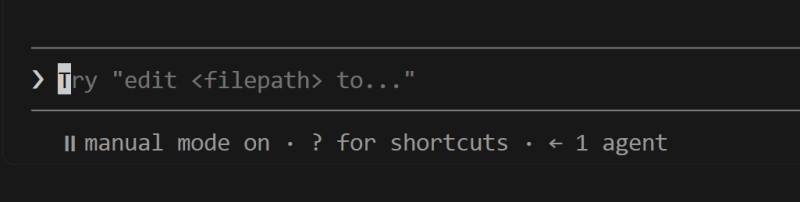
“That’s tedious.” Tommy grimaces.
“Tedious. But you see every step before it happens, and at any point you can say ‘no.’ This is the position for when mistakes are costly and the plan is thin: you want to keep your hand on every action.”
plan — the agent only plans; it can’t edit.
“That’s what we just used. The agent reads, figures things out, lays out the plan — but the edit tool is disabled, and nothing changes on disk. You give it a task — you get a plan, not a result.”
plan # only a plan, not a single edit“This position is ‘show me what you have in mind first.’ For entering important or unfamiliar code, when you need to see the intent first and only then let it near the files.”
acceptEdits — the agent edits without asking about every edit.
“And this is the other direction. Here the agent doesn’t keep asking you for confirmation on every file edit — it edits on its own and moves on.”
acceptEdits # edits files without asking “do it?” every time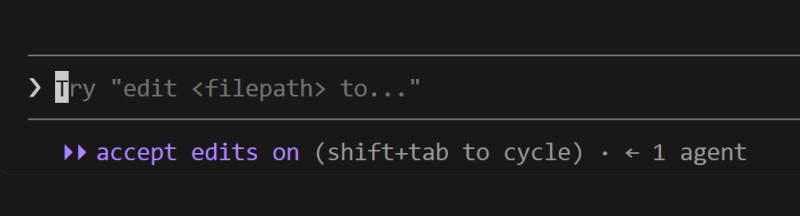
“Oh, that’s my thing! Full freedom, beautiful.” Tommy perks up.
“Hold on, not quite,” Alex cuts him off. “This is not ‘do whatever you want.’ It’s a narrow thing: the agent stops asking specifically about file edits — it doesn’t keep asking ‘change this file? yes/no’ on every little thing. Everything else stays alert as usual. This is not ‘throwing the reins away completely,’ but ‘in this understandable routine, don’t slow me down with confirmation on every line.’ Do you see the difference? Not full autopilot — just removed one annoying question.”
“Ah, so it won’t go off the rails; it just doesn’t ask about every little thing.”
“Exactly. For monotonous, clear work where standing over every edit is just a waste of time.”
“And one honest little thing about the names,” Alex adds. “Down in the status bar, the modes are labeled in plain language: ‘ask before edits,’ ‘planning mode,’ ‘edit without confirmation.’ But the actual name acceptEdits in the setting and on the flag is written as one word, all together. So you don’t later go looking for why ‘accept edits’ with a space is nowhere to be found.”
Tommy sees trust for the first time not as “I trust / I don’t trust,” but as a lever:
“So ‘trust’ isn’t about mood? Not ‘today I trust him, tomorrow I don’t’?”
“Exactly, not about mood. It’s a tunable regulator with three positions. The higher the cost of a mistake — the more you keep the wheel toward control (manual, plan). Where the routine is safe — you let it move faster (acceptEdits). It’s a conscious tradeoff: speed for control. Not a button you press once and forget forever.”
“And look how this fits with our morning talk about genres,” Alex continues. “Remember the four genres? So the genre tells you the wheel position directly. Recon in unfamiliar code — turn toward plan: I look, I don’t break anything. A clear, monotonous routine — you can use acceptEdits, don’t yank it at every step. Someone else’s or important code — manual with a check on every move. How exactly to choose the wheel for each situation you’ll figure out in practice; later in the course we’ll lay it out point by point. For now keep this connection in your head: whatever the genre, that’s the wheel.”
“Listen, but aren’t these buttons going to change?” Tommy checks just in case. “I don’t want to learn them and then have them move.”
“The names and the switching method can change over time, honestly,” Alex says. “That’s why learn not the specific key, but the wheel itself and its positions. The button is a detail; the wheel is forever.”
5. Mode commands at hand
“And lastly, in the background.” Alex doesn’t turn this into a separate topic. “By today the /-command console should feel natural to you. Without it you’re like a driver who never looks at the dashboard.”
/context    # what the agent sees right now — its attention window
/model      # which model we're riding on right now
/memory     # what the agent has remembered about the project
“These are no longer ‘new commands’ you have to learn,” he says. “They’re normal working gestures. Like hotkeys in an editor: you don’t remember them, you press them. Want to know what’s in the agent’s head — /context. Unsure whether you’re on a strong model or a weak one — /model. Glance, and keep going.”
Tommy tries it — and sure enough, after all these weeks the commands come naturally, without strain. The wheel is already in his hands. All that’s left is to drive a real task with it.

GO TO FULL VERSION