So far, we have looked at the ideal scenario: you write code, make commits, and create a Pull Request. But in real life, things often go wrong: you forgot to add a file, made a typo in a commit message, or realized you went in the wrong direction. In this lecture, we will discuss how to solve the most common problems.
1. Rollback — undoing local changes before a commit
Scenario: you changed a file, but realized that all your edits are wrong, and you want to quickly revert the file to the state it was saved in the last commit.

Use the Rollback feature:
- Open the
Committab on the left panel. - Find the changed file (or select multiple files) in the list that you want to "rollback".
- Right-click on it and select
Rollback(or click the curved arrow icon).
The IDE will warn you that unsaved changes will be lost. Agree, and the file will instantly return to its last "clean" version from Git. This is the easiest and safest way to undo local experiments.
2. The Magic of "Amend": how to update the last commit
Scenario: you just clicked the Commit button and immediately realized that you forgot to attach an important file (like an updated test) or made a silly typo in the commit message. Making a new commit with the message "Added forgotten file" is bad practice.

Instead, use the Amend feature:
- In the
Commitwindow, make the necessary corrections to the forgotten file and check the box next to it. - In the Commit Message panel, find the Amend checkbox (or gear icon -> Amend Commit) and check it.
- The IDE will pull up the message of your previous commit. You can edit it.
- Click
Commit.
Instead of creating a new "junk" commit, Git will carefully "open" your previous commit, add the new files, update the message, and seal it back up. The history will remain perfectly clean!
Read more about this feature in the official JetBrains tutorial.
3. Undo Commit
Scenario: you made a commit but haven't pushed it yet via Push, and suddenly realized you rushed. You want the commit to disappear from history, but the code changes themselves to remain in your editor so you can continue working.
Use the Undo Commit feature:
- Open the history,
Git -> Logtab at the bottom. - Right-click on the top (your last) commit.
- Select
Undo Commit.
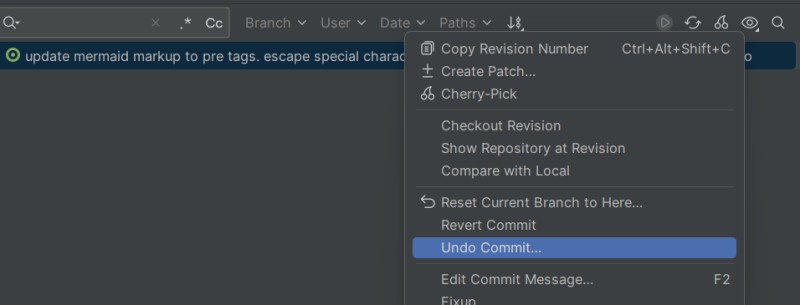
Select the changelist (usually Default Changelist) and click OK. The commit will disappear from the history, and all your files will return to the Commit window with a modified status. You haven't lost anything and can calmly continue writing code.
4. Reset — deleting local history (Caution!)
The Reset Current Branch to Here... feature is a powerful tool that moves your branch pointer to any selected commit. Depending on the situation, this button can either delicately undo recent actions or radically erase broken code.
Scenario A: Undoing recent local commits
You made several commits locally (before Push) and realized that this entire branch of development was flawed.
- Open the
Git -> Logtab. - Find the last "good" commit you want to end up on (the one before the series of flawed ones).
- Right-click on it and select
Reset Current Branch to Here....

Scenario B: Resetting to server state
You experimented locally, got tangled in conflicts, and the project stopped building. You want to say: "Git, delete everything I did here and make my branch exactly as clean as it currently is on the GitHub server".
- Open
Git -> Log. - Find the remote branch marker in the list. This is usually a commit with a purple
origin/mainlabel (ororigin/your_branch_name). This is the last known state of the code on the server. - Right-click on this commit and select
Reset Current Branch to Here....

Reset Modes
In both scenarios, the IDE will offer you to choose a reset mode. For beginners, it's important to know two of them:
- Mixed / Soft: Safe mode. Commits are deleted from history, but all file changes remain in your editor (like a big
Undo). Perfect for Scenario A if you want to rebuild the commits anew. - Hard: Radical mode. Irrevocably deletes both commits and all uncommitted code changes. Your project will be completely rolled back to the state of the selected commit. This is exactly the mode needed for Scenario B to make your local branch an exact copy of the server. Use it only if you are 100% sure that you will never need the locally written code again.
5. What to do after Push?
Scenario: you did a push, and only then noticed an error in it.
Once a commit hits the remote server, it becomes part of the shared project history. Attempting to rewrite this history (e.g., via Reset or Amend) can create huge problems for your colleagues. Imagine they have already downloaded your changes and started their work based on them.
The right and safe solution:
Simply make a new commit that fixes the error and send it with a normal push. This is absolutely normal practice. If the error is related to functionality or code logic, it's better to write the fix manually. A linear history, where a flawed commit is followed by a clear commit with a fix, makes the evolution of the project transparent for the whole team.
The IDE also has a special Revert Commit feature. If you right-click on the flawed commit in the Git -> Log and select Revert Commit, the IDE will automatically create a new "anti-commit" that does exactly the opposite of what the flawed one did (for example, deletes the added lines).

When should you use Revert?
Although the button looks magical, you should use it with caution for complex code. When the commit history turns into a chain of "Commit -> Commit -> Revert -> Commit", your colleagues during Code Review can literally "break their heads" trying to understand what is ultimately working and what has been canceled.
But Revert Commit works perfectly for isolated text edits. For example, marketers asked to update the text on the main page. You made a commit and pushed, and an hour later the business changed its mind and asked to return the old text. In this case, Revert in one click will return everything as it was, saving you time and leaving an absolutely clear trace in history.
6. Stash / Shelve: how to temporarily hide changes
Scenario: you are actively writing code for a new feature, all files are red and blue. Suddenly the Team Lead comes running: "Drop everything, we urgently need to fix a bug in the main branch!". You can't switch to main because you have unfinished conflicting changes. You also can't make a commit with half-written code.
The solution is to temporarily "hide" your work in a virtual box. In Git, this is called Stash, and IntelliJ IDEA has its own improved analogue — Shelve.
- Open the
Commitwindow, select the changed files. - Right-click and select
Shelve Changes...(or Git -> Stash Changes). - Write a clear name for this "bookmark" and click Shelve.

Your files will instantly return to their original state. Now you can safely switch to main, fix the bug, make a commit, and send it. When the urgent task is done, return to your working branch, open the Shelf tab, right-click on your hidden changes and select Unshelve. Your unfinished code will return to its place, and you can continue working!
7. Looking into the past: advanced work with logs
We are already familiar with the Git -> Log window, but it's not just a list of commits, it's a powerful tool for investigations.
- Commit Hash: you've probably noticed a string of letters and numbers in the log, like
a1b2c3d. This hash is a unique identifier for each "snapshot" of your code.![Commit hash in logs]()
- You can filter history by branch, author, date, or even by a word in the commit message. This helps quickly find who and when worked on a specific part of the functionality.
- Want to find a commit where a specific line of code was added or deleted? The
Logwindow has a search box that searches not only by messages but also by the contents of the changes themselves. - Right-click on the code editor margins (where the line numbers are) and select
Annotate with Git Blame. The IDE will show next to each line who and in which commit last changed it. This is incredibly useful for understanding why the code is written the way it is.

8. Danger Zone: Force Push
So, we've established that modifying pushed commits is a bad idea. But what if you still changed your local history (for example, using Undo Commit or Amend), and the old version is already on the server? When trying to do a regular push, Git will throw an error, protecting the shared history from being rewritten.
For such cases, there is an option — force push. This command tells the server: "Forget everything you had. My local version of the history is the only correct one. Replace your history with mine."
WARNING! In 99% of cases, using force push in team projects is a disaster. It can irrevocably delete commits that your colleagues have already downloaded and are basing their work on.
When you absolutely MUST NOT use force push:
- On any shared branches:
main,develop,master. Never. - On any branch that someone else is working on besides you.
The only acceptable scenario:
You are working in your personal feature branch, which no one else has seen or downloaded yet. You made a few "dirty" commits, sent them to the server, and then decided to squash them or fix a typo via Amend. In this case, you can do a force push to update your branch on the server before creating a Pull Request.
In the IDE, this option is usually hidden in the drop-down menu of the Push button. IDE developers did this intentionally so you wouldn't click it by accident.

If you are not 100% sure what you are doing — never use force push. It is safer to create a new commit with fixes (or use Revert).
9. Updating the Project
We already talked about this in the second lecture, but this topic is so important for teamwork that we make it a separate rule.
Always click Update Project before starting work on a new task and every morning at the beginning of the workday. This will save you from many future merge conflicts and ensure that you start working with the most up-to-date version of the code, having pulled all fresh commits from your colleagues from the server.
10. Git Log Context Menu
When you open the Git -> Log tab and right-click on any commit, a huge context menu appears. Let's break down the most useful commands grouped by tasks.

Group 1: Viewing and Analysis (Safe Actions)
Copy Revision Number— copies the unique commit hash to the clipboard. Useful if you need to send a link to a commit to a colleague in a chat or specify it in a task (Jira/YouTrack).Compare with Local— allows you to compare the state of any file from that old commit with what you currently have unsaved in the editor (in the working directory). A great way to figure out: "How did this code look a month ago?".Show Repository at Revision— opens a window where you can view the structure of all project files exactly in the state they were at the time of this commit (without changing your current working branch).
Group 2: Working with Branches
New Branch...— creates a new branch right from the selected commit in the past. Indispensable if you've gone far ahead, realized you broke everything, and want to start a new branch from the last "working" place.Checkout Revision— switches your local project to this commit. You will find yourself in a "detached HEAD" state. This means you can run the old code, wander around it, but if you start making new commits, they won't be attached to any branch. To return to normal work, simply Checkout your regular branch (e.g.,main).
Group 3: Modifying and Transferring
Cherry-Pick(Cherry on top) — an incredibly useful command! Allows you to "pull out" one specific commit from someone else's (or your other) branch and copy it to your current branch. For example, someone in another branch fixed a bug that blocks your work — you simply Cherry-Pick this commit to yourself, without merging the entire other branch.Edit Commit Message...— if the commit hasn't been sent to the server yet (no Push), you can quickly rename its message. Much more convenient than doing Amend if you only need to change the text.
Group 4: Undoing Changes
We discussed these commands in detail in the previous sections:
Reset Current Branch to Here...— moves your current branch to this commit (deleting the history ahead).Revert Commit— creates an "anti-commit" for a safe revert on the server.Undo Commit...— disassembles the local commit back into the changes window.
Group 5: Rewriting History
The menu also includes commands like Squash Commits... (combine multiple commits into one), Drop Commits (delete a commit from the middle of history), or Interactively Rebase from Here.... These are tools for powerful surgical work on local history (Interactive Rebase).
While you are learning, try not to use these commands, as they completely rewrite history. In real teamwork, they are used to "clean up" your draft local branch before giving it for Code Review (creating a Pull Request).
11. Final Words
Version control systems can seem complex: branches, merges, conflicts, scary commit hashes. But remember the main thing: Git is your safety net. Every Senior developer once frantically googled how to get out of a "detached HEAD" state or how to undo an accidental push. Don't be afraid to experiment. Making mistakes locally is absolutely normal, because now you have a full arsenal of IntelliJ IDEA tools to undo, rollback, and fix any blunder before the team sees it. Make commits frequently, write clear messages, always do Update Project in the morning, and you will become a reliable and professional contributor to any project.
12. Practical Task with an Asterisk
We invite you to complete a small but very tricky task. 90% of developers face this problem when they start working on multiple projects.
Your task:
- Register a second GitHub account with a different Email address.
- Add this new account to IntelliJ IDEA.
- Create a new repository, clone it, write a couple of lines of code, and do
CommitandPush, selecting your new account. - Now go to the
git-logpage and carefully look at the commit history.
What's the catch?
Most likely, you will be surprised to find that the author of the commit is listed as your first (main) account, even though you definitely pushed on behalf of the new profile!
Investigation:
Your goal is to figure out why this happened. Hint: authorization on the GitHub site (to have Push rights) and the author's signature inside the commit itself are not the same thing. Find a way (via the terminal?) to switch user.name and user.email so that they apply only to this specific project, without breaking the settings of your main account. Make a new commit and ensure that the history has a commit from account number 2.

GO TO FULL VERSION