1. Flat Structure
If you come from languages like Java or Kotlin, you are probably used to a strict folder hierarchy like src/com/company/project. In Go, the approach is much more pragmatic. There is no mandatory src folder for source code.
For small utilities and microservices, source files often lie directly in the project root, next to the go.mod file. As the project grows, the code is grouped into folders (directories), each of which becomes a separate package.
Example of a basic project structure:
tasker/
├── .idea/           # GoLand service files, do not touch
├── go.mod           # module file (dependencies and Go version)
├── main.go          # entry point (package main)
├── banner.go        # helper file (also package main)
└── README.md
2. A Package is Just a Directory
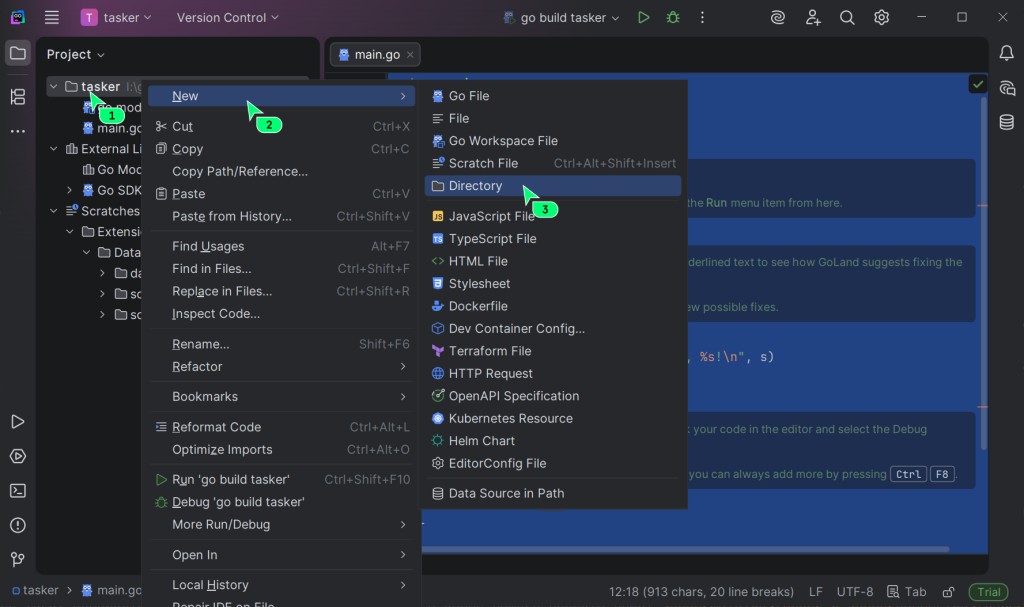
In GoLand (unlike IDEs for Java or Kotlin), when you right-click on the project, you won't find a New → Package option. This is not a UI limitation, but a fundamental architectural feature of the language: in the Go ecosystem, a package is a physical folder (Directory) with source code on the disk. There are no abstract namespaces disconnected from the file system.
Main rules for working with packages:
- To create a new package, you create a regular folder via New → Directory and give it a simple short name like
utilsorlogger. You don't need to write any "package" prefixes in the folder name!![]()
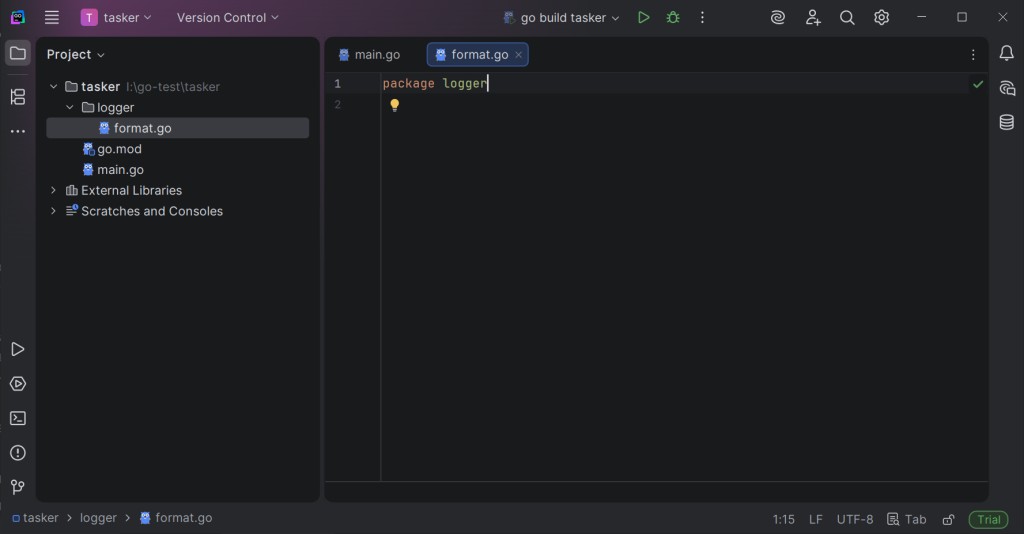
- Inside the created directory, you can name
.gofiles whatever you want; there is no strict binding to the package name. It is customary to use short lowercase names. For example, inside theloggerfolder, we can create aformat.gofile to place the text formatting logic.![]()
- According to Go standards, the package name in the code must match the folder name. If the folder is called
logger, then inside it, on the very first line of every.gofile, you must write the code:package logger. - All
.gofiles lying inside a single folder are strictly required to belong to that single package. You cannot create a file in theloggerfolder and writepackage utilsin it — the compiler will throw an error. - The main package, from which the program starts running, is always called
package mainin the code, but the folder itself can be called whatever you want (usually the project root or thecmd/folder). - Nested folders form completely independent packages. The
networkfolder and its nestednetwork/httpfolder are not related to the Go compiler and do not share scopes.

Multiple Files in One Package
In Go, there is no "one class = one file" rule for the simple reason that the language doesn't have classes at all. Instead, it uses functions, types, and structs, which can be grouped into files in whatever way is logically convenient for the engineer. A single file can contain as many entities as needed.
Moreover, the Go compiler "glues" files of the same directory together during the build phase. If your project root has main.go and banner.go, and both indicate package main, to the compiler this is a single transparent namespace.
This means you can declare a constant AppVersion = "1.0" in the banner.go file and freely use it in main.go without any imports. All the code inside one folder "sees" each other directly, regardless of how many files it is split into.
3. Imports and Visibility
In Go, imports work strictly for a specific file, not for the entire package. That is, if you use the formatting package fmt in two different files of your project, you must import it at the beginning of each of them.
No Wildcard Imports
In some languages, you can write import "math/*" to import all the contents of a library at once. You cannot do this in Go. You import a whole package by its path (e.g., import "math"), and then you access its functions through a dot, using the package name:
import "math"

func main() {
    result := math.Max(10, 20) // Accessing a package function
}
There are no public or private keywords in Go. If a function or variable starts with an Uppercase letter like math.Max, it is exported and accessible to other packages. If it starts with a lowercase letter like calculateSum — it is only visible within its own package.
4. Navigation and Code Reading via IDE
When the codebase grows, the IDE takes on the role of a navigator.
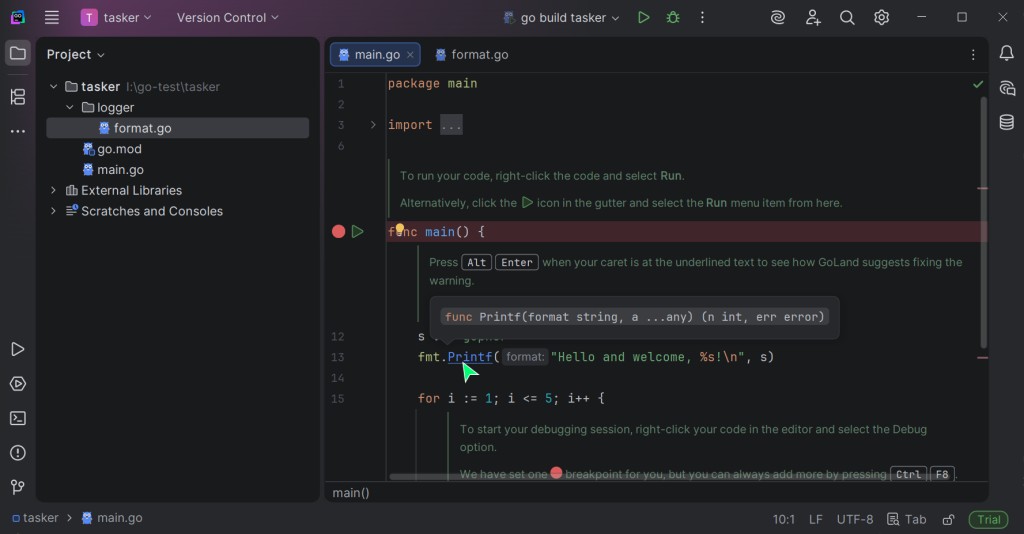
- If you hold the Ctrl key (Command on Mac) and click on the
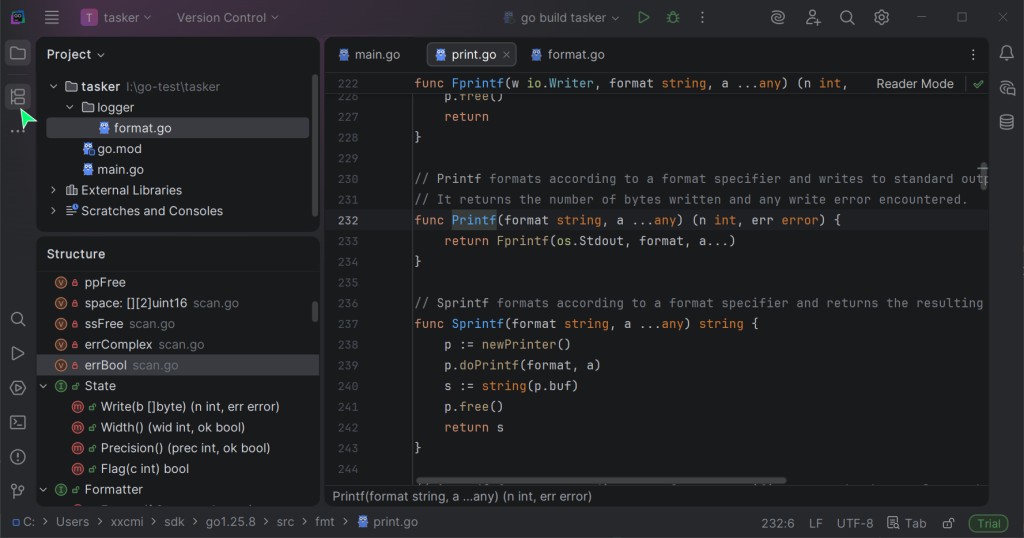
fmt.Printlnfunction call, GoLand will instantly open the Go standard library source code where this function is implemented. This is a great way to study how professionals write code.![]()
![]()
- The Structure Window. Notice the left interface panel, right below the project tree. There is a Structure tab. It shows the internal layout of the currently open file in the editor. If a file has grown to hundreds of lines of code, scrolling through it manually is inefficient. The Structure tab outputs a neat list of all types, constants, variables, and functions declared in the file. A single click on a name in this list makes the editor instantly move the cursor to the corresponding line.
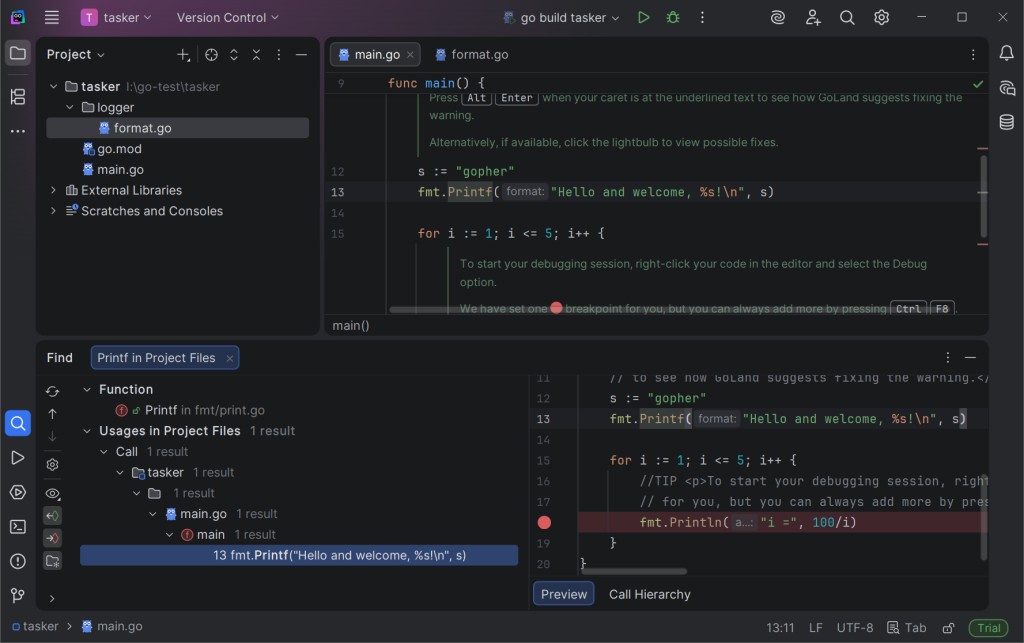
- Right-click on any of your functions or variables and select Find Usages (Alt+F7). The IDE will show a list of all places in the project where this function is called.
5. Debugging Basics
When a program doesn't crash but produces an incorrect result, instead of guessing or cluttering the code with dozens of temporary fmt.Println statements, Debug mode is used. Debugging allows you to stop time inside the program and peek into the current state of memory and variables.
package main

import (
	"fmt"
)

func processValue(val int) int {
	result := 100 / val
	return result
}

func main() {
	s := "gopher"
	fmt.Printf("Hello and welcome, %s!\n", s)

	for i := 1; i <= 5; i++ {
		res := processValue(i)
		fmt.Println("i =", res)
	}
}
Task: We want to see with our own eyes how the variable i changes inside the loop, and step-by-step verify exactly how the processValue function calculates the division result.
Action: Breakpoint
Left-click on the editor margin (on the line number) next to res := processValue(i). A red circle will appear. Now, instead of the regular run, click the green bug icon (Debug) 🐞 on the top panel or to the left of the main() function.
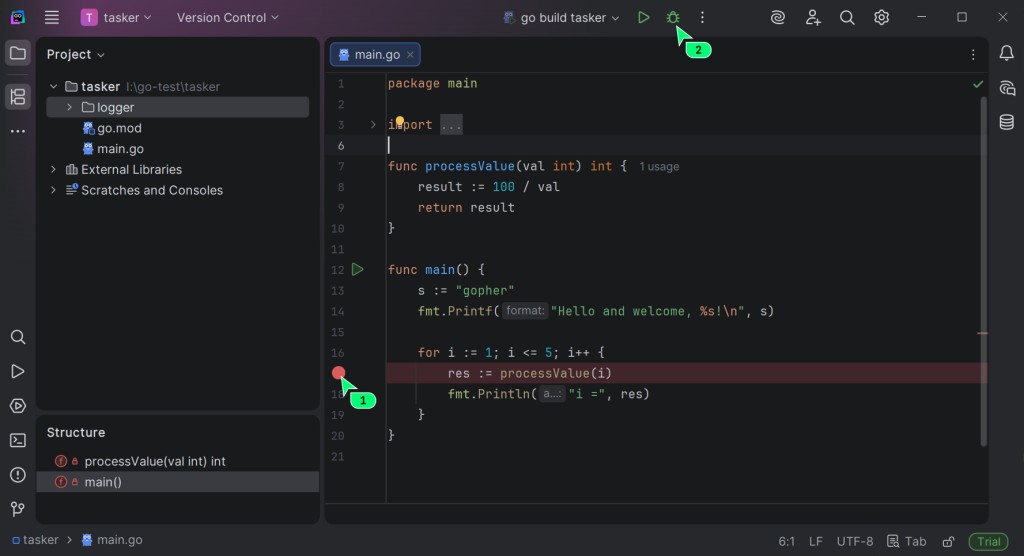
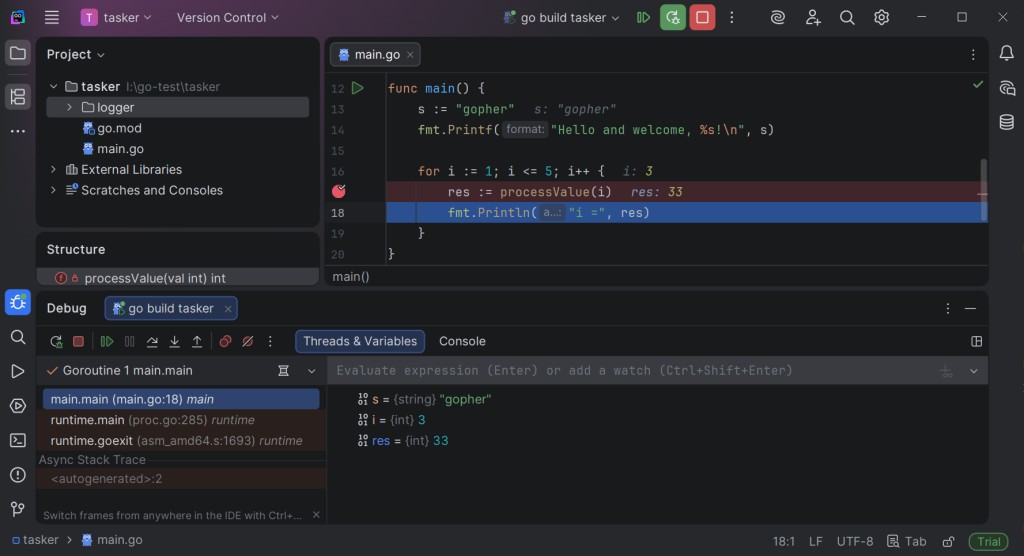
The program will reach the red circle and pause. The bottom panel will change to the Debugger window. Right in the code editor, gray text will show the current memory state: i = 1!
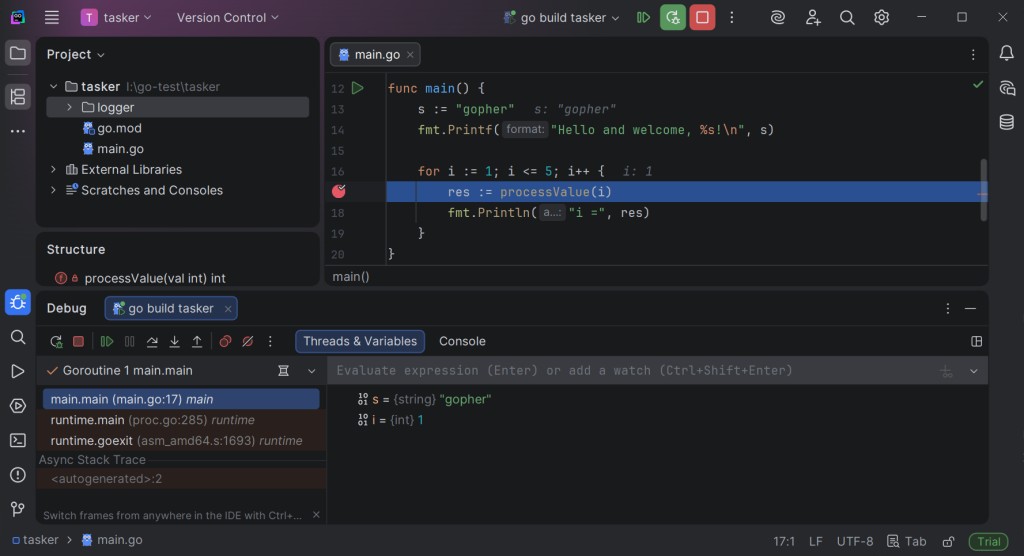
Now the program is waiting for your commands. Use the buttons on the Debugger panel at the bottom of the window:
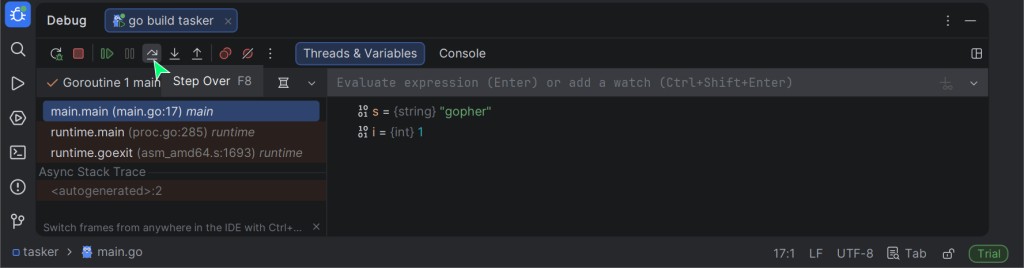
- F8 — Step Over. Execute the current line and move to the next one without diving into functions. Press
F8several times to see how the loop iterates and the variableigradually increases: 2, 3, 4.![]()
- F7 — Step Into. Since the program stopped at the
processValuefunction call, pressingF7will "dive" inside this function. You can step through and see how the variablevalreceives its value and how theresultis calculated. - F9 — Resume Program. Let the program continue running at its normal fast pace until it hits the next breakpoint (red circle) or finishes.
The built-in Debugger is the most powerful analytical tool when developing in Go. Get used to using it for a deep understanding of exactly how your code executes.

GO TO FULL VERSION