1. How to find and install the JavaRush plugin
If GoLand were a smartphone, plugins would be the apps that make it truly useful. Plugins extend the IDE's functionality: they add support for new tools, service integrations, custom themes, and smart code analyzers.
The JavaRush plugin is a special extension created so that you can solve course tasks directly in GoLand. Imagine: no need to copy code back and forth, no need to constantly switch between your browser and local IDE, everything works in a single window! The plugin allows you to:
- Get Go tasks right in your project;
- Submit solutions for verification with one click;
- Instantly see the result: accepted, error, hint;
- And, of course, get distracted by the browser less often.
2. Installing and activating the JavaRush plugin
To work with the plugin, you will need GoLand version 2025.3 (or newer) and plugin version 251.1.19+. You can download the JavaRush plugin directly from the internal JetBrains Marketplace.
- Go to the "Settings" section: on Windows/Linux it's
File -> Settings, on macOS —GoLand -> Settings.... If there is no settings section, open any project or click on the gear icon on the start screen. - In the window that appears, select the Plugins section in the sidebar menu and open the Marketplace tab. Type javarush in the search bar.
![]()
-
Select the plugin, click the Install button, and accept the "Third-Party Plugins Notice".
-
Restart the IDE so the plugin integrates into GoLand.
-
After restarting, you will see a slightly modified interface and a Log in button on the top horizontal panel.
Clicking it will open a login window where you need to enter your secret key. You can find the key in the "Settings" → "Security & Login" section on the website.
![]()
After logging in, the learning project will automatically start downloading, and the Go Modules environment will be prepared for building tasks. Please do not change these build settings manually so that automatic verification works correctly.
![]()
Trust and Open... is a standard security feature in GoLand. The IDE asks if you trust the code in this project. For JavaRush projects, feel free to click "Trust Project".
-
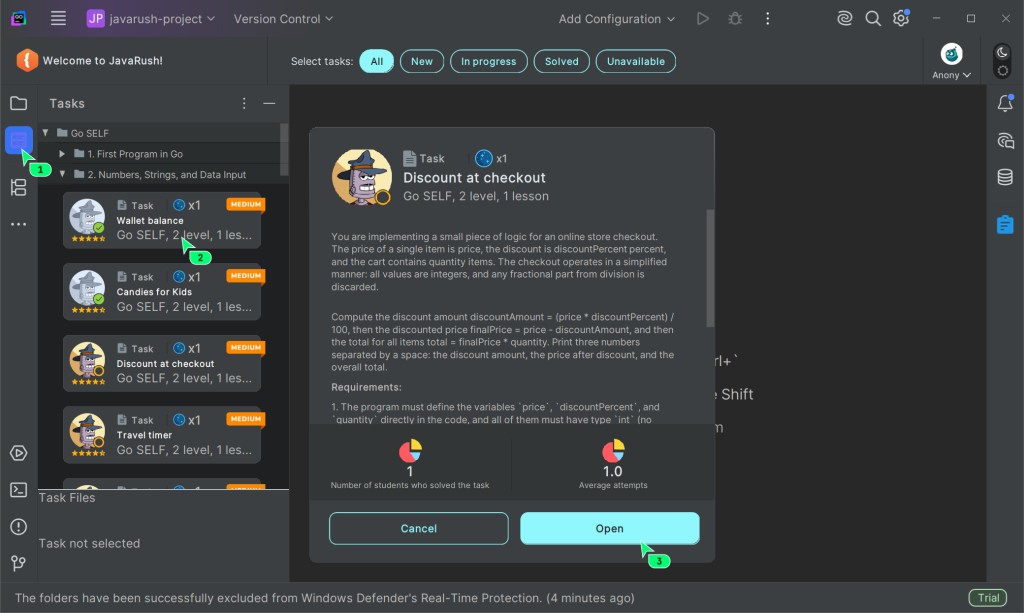
To open a new task, click on the Tasks tab in the left vertical panel, then select a task card and click Open in the pop-up window:
![]()
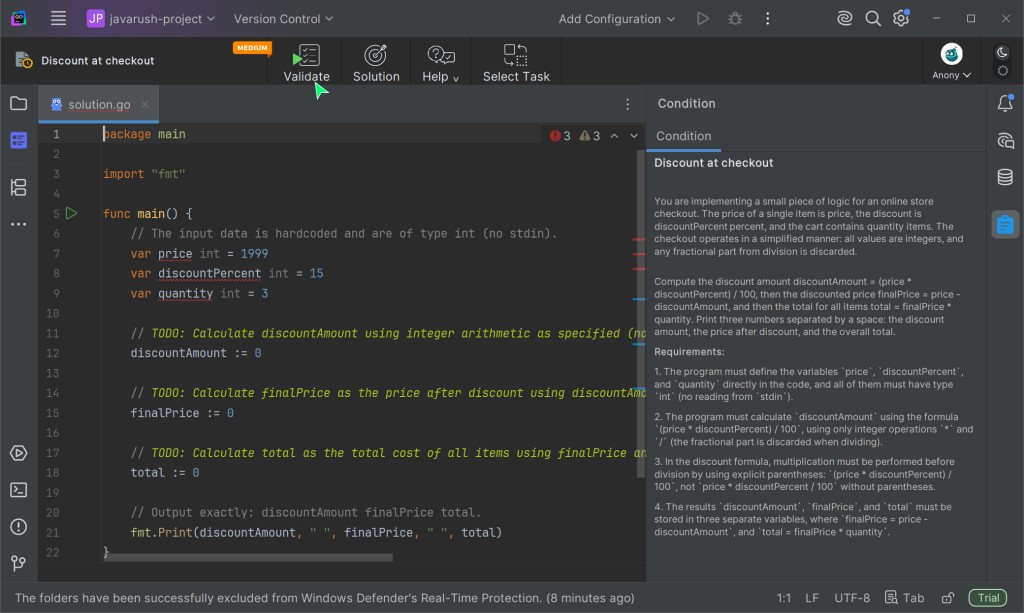
A window with two tabs will open before you.
Solutionis your.gofile for writing code, andConditionis the task description text.Write the solution to the task and click the
Verifybutton (green checkmark).![]()



Congratulations! The plugin is installed, the workspace is ready — you can start solving tasks in Go.
3. Manual plugin installation (Alternative method)
If for some reason the marketplace is unavailable, the plugin can be installed manually:
- Download the plugin archive to your computer.
- Go to GoLand settings:
File -> Settings(orGoLand -> Settingson Mac). - Find the Plugins section in the left menu.
- Click on the gear icon (⚙️) at the top of the plugins window and select "Install Plugin from Disk...".
![]()
- Open the folder where the downloaded archive is located. Select it, click
OK, and then restart the IDE.

Syncing tasks between the website and the plugin
The list of tasks and their statuses is updated automatically: every five minutes or after successfully submitting any task for verification.
Therefore, if you solved a task directly on the website via a browser, it will also be marked as solved in the plugin. If you need to force an update of the statuses right now, click on your avatar (top right in the GoLand interface) and select Sync tasks from the dropdown menu:

Novice Mode in the plugin
This is a simplified version of the plugin interface for those who prefer minimalism when starting to work with complex IDEs. It hides some of GoLand's advanced features to help you focus on the essentials. To disable this mode (when you feel the need for advanced tools), click on your avatar and uncheck the box in the menu: Settings -> Novice Mode.

How to hide the plugin navigation bar in PRO mode
If you are an experienced developer and want to see more code on the screen, click on Settings (⚙️) in the plugin menu and uncheck "Show plugin navigation bar".

4. Must-Have Plugins for GoLand
The JetBrains ecosystem is famous for its plugins. Although GoLand has everything you need for Go "out of the box", there are a few universal extensions that make life and development incredibly easier.
1. Key Promoter X
A true virtual hotkey coach! Key Promoter X monitors how you work in GoLand. If you reach with your mouse to click a button (for example, Run or Build), the plugin will helpfully show a notification: "You could have done this in a millisecond by pressing Shift+F10". Install it, and in a month your hands will be flying over the keyboard without a mouse.

2. Rainbow Brackets
In Go, you will have a huge number of curly braces {}, parentheses ()... It's very easy to get confused by them. The Rainbow Brackets plugin colors each pair of brackets in its own unique color. This visually breaks down the "wall of code" into understandable logical blocks and saves a lot of time when searching for a forgotten closing bracket.

3. Material Theme UI
Do you want your development environment to look stylish, personalized, and modern? Material Theme UI is the most popular plugin for customizing the interface across the entire JetBrains IDE lineup.

GO TO FULL VERSION