The plugin integrates into your IDE: Intellij IDEA, WebStorm, or PyCharm, and lets you work with JavaRushcourse tasks right inside it. For example, you can write your solution code, send it for validation, compare your solution with the "default" one, and a bunch of other stuff. Your progress in solving tasks in the plugin syncs up with your JavaRushaccount, so it’ll look the same both on the website and in your IDE.
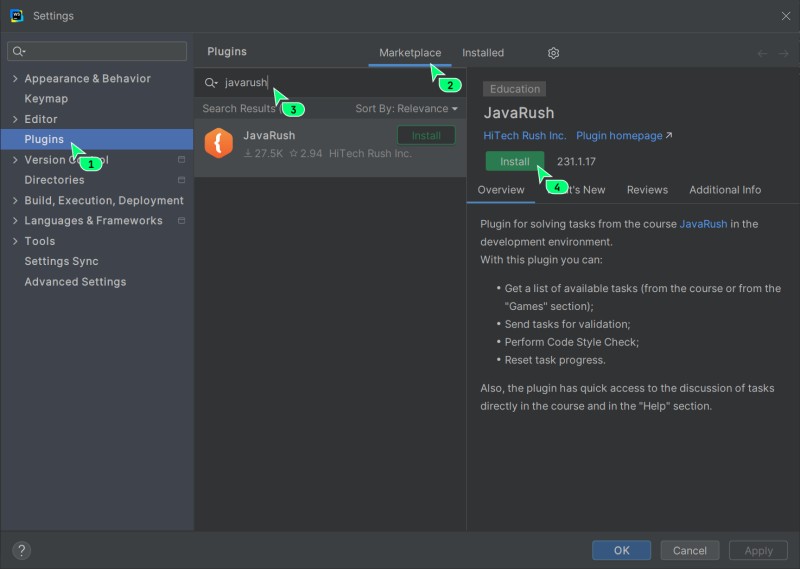
You can download the JavaRushplugin from the Jetbrains marketplace, right from your IDE. We’ll show the steps using WebStorm as an example, but the same steps work for other IDEs too.
To use the plugin, you’ll need Jetbrains IDE version 2023.1 or newer.
Go to "Settings": on Windows/Linux it’s
File - Settings, on MacOS it’sWebStorm - Preferences. If you don’t see the settings section, open any project or create a new one.In the window that pops up, pick the Plugins section in the sidebar and open the Marketplace tab. In the search bar, type codegym
![]()
- Select the plugin and hit the Install button.
- Restart your IDE (Restart IDE) like WebStorm to start using the plugin.
Plugin installed!
Logging Into Your Account and Loading a Task
- You’ll see a slightly changed interface and a button Log in to account on the top horizontal panel.
When you click it, a window will pop up for you to log in to your account, where you’ll need to enter your secret key:
![]()
Just a reminder, you can find your secret key in Settings → Security and login.
To open a new task, click
Tasksin the left vertical panel, then click the task card in the left sidebar, and hit Open:![]()
- When you open a new task, you’ll see a workspace with a few important files:
solution.sql— this is your main working file. This is where you’ll write your SQL query to solve the task.init.sql— this is a helper script to set up your local database. It has instructions for creating the needed tables and filling them with data. Not every task has this file: if a task doesn’t need any tables (for example, the querySELECT 2+2*2;), it won’t have aninit.sqlfile, and that’s fine.- The tab with the task description.
![]()
- With the
solution.sqlfile, it’s just like on the website. Write your solution and hit theCheck/Validatebutton.


Running Your Solution Locally
The tasks in this lecture ("Calculate a simple sum" and "Converting a String to Uppercase") work without tables, so they don’t have an init.sql file: just write your query in solution.sql and run it (the last step in the list below). The first steps are for tasks with tables, which have an init.sql file next to solution.sql.
- If the task has an
init.sqlfile, first use it to create the tables and data in your local database: right-click the file and pickRun 'init.sql'.![]()
- In the "Edit Configuration" window that pops up, you need to specify where exactly the script should run. In the "Target data source / schema" section, click
+and pick your configured connection, then the needed schema (likeuniversity). After picking, hit Run.![]()
- After it runs successfully, you’ll see a message in the console at the bottom. To see the created table, refresh your database view in the "Database" panel (the button with two arrows). You should see the new table (like
products) in your schema.![]()
- Now that your database is ready (or if the task has no
init.sql), open thesolution.sqlfile. Write your SQL query. To test it locally, pick your schema in the dropdown above the editor and hit the green "Run" button. Your query will run on your local database, and you’ll see the result.![]()


Rerunning init.sql or Solving the Dependency Problem
When working on tasks, you will often run the init.sql script to prepare your local database. But what happens if you run it a second time when the table has already been created?
It would seem that the DROP TABLE IF EXISTS employees; command, often found in such scripts, should solve this problem by deleting the old table before creating a new one. However, this is not always the case. You might encounter an error that prevents the table from being deleted. This happens if other database objects reference your table, such as foreign keys (FOREIGN KEY) from other tables or views (VIEW). The system protects these relationships, preventing the "parent" table from being deleted.
The CASCADE Option
For such cases, PostgreSQL has an extension for the DROP command—the CASCADE option. It tells the server: "Delete this table and automatically delete all objects that depend on it." This allows you to "forcibly" clear everything associated with the table being deleted.
Code Example
-- This version might cause an error if the employees table is referenced
DROP TABLE IF EXISTS employees;

-- OPTION for educational scripts
-- This will delete the employees table and, in other tables, the foreign keys that reference it (those tables themselves will remain).
-- IF EXISTS prevents an error if the table does not already exist.
DROP TABLE IF EXISTS employees CASCADE;

-- After this, you can safely create the table again
CREATE TABLE employees (
    id SERIAL PRIMARY KEY,
    full_name TEXT NOT NULL
    -- ... other columns
);
Important! For educational purposes and in local development, where you need to frequently recreate the DB structure, CASCADE is your best friend. However, in real, production databases, this command should be used with extreme caution, as it can lead to the unintentional deletion of important related data and objects.
Syncing Tasks Between Website and Plugin
The list of tasks and their statuses updates automatically every five minutes or after you send any task for validation (JavaRushserver).
So if you solved a task on the website, it’ll also show up as solved in the plugin. If you want to update the task statuses right now, click your avatar (top right), and in the dropdown menu pick Sync tasks:

Beginner Mode in the Plugin
This is a simplified version for users who don’t have (or have very little) experience with WebStorm and other IDEs. Some WebStorm features are hidden in this mode. To turn off this mode, click your avatar (top right), and in the dropdown menu pick Settings:

How to Hide the Plugin Navigation Panel in PRO Mode
Click the Settings (⚙️) item and uncheck the "Show plugin navigation panel" option:


GO TO FULL VERSION