1. Getting to know the fmt.Println statement
You have just written your first Go program and printed your first message to the screen. Congratulations. Let’s not stop there...
Here are 2 facts about statements in Go:
Any Go program consists of statements (commands). Statements are different. The Go language has statements for all occasions. Each statement describes a specific action.
In Go, a semicolon at the end of a line is usually not needed: a line break is enough.
Examples of output statements:
| Statement | Description (what it does) |
|---|---|
|
Prints the number: |
|
Prints the text: |
|
Prints the text: |
In fact, this is one statement — fmt.Println. And in the parentheses you pass parameters to it. Depending on the parameter values, one statement can perform different actions. That’s very convenient.
Case matters
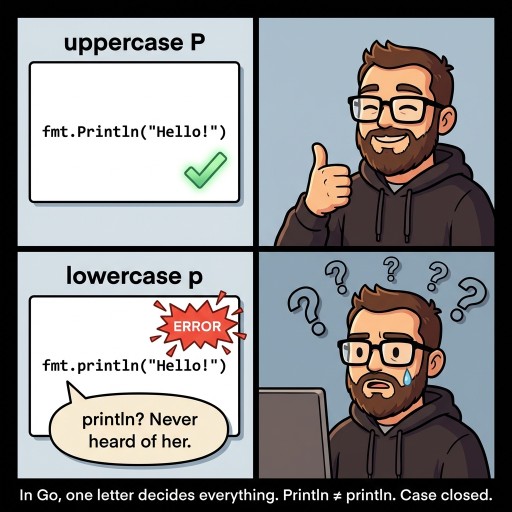
In Go, case matters: it is important whether statements are written with uppercase or lowercase letters. The statement fmt.Println() will work, but fmt.println() will not. If you write a statement with the wrong letters, Go won’t recognize it, and therefore won’t execute it. So be careful.
Double quotes

If you want to print text to the screen, you need to wrap it on both sides with double quotes.
A single quote looks like this ', and a double quote looks like this ". A double quote is not two single quotes—please don’t confuse them.
In Go, single quotes are usually used not for strings, but for a single character (a rune), for example: 'A'.
The double quote is the one next to the Enter key. On many keyboards, it also shares the key with the Cyrillic letter “Eh” in the Cyrillic layout.
2. Getting to know the fmt.Print statement
There is another statement similar to fmt.Println(), and it is called fmt.Print().
The fmt.Println() statement prints text to the screen and then adds a cursor move to the next line, as if pressing Enter. This way, the next fmt.Println() statement will print its text on the next line. And the one after that—on the next line, and so on.
Unlike fmt.Println(), the fmt.Print() statement does not add Enter after printing text. Therefore, text printed by several fmt.Print() statements will be printed on a single line.
Example 1:
package main

import "fmt"

func main() {
	fmt.Print("Amigo")
	fmt.Println("The")
	fmt.Print("Best")
}Will print to the screen:
AmigoThe
Best
Example 2:
package main

import "fmt"

func main() {
	fmt.Print("Amigo")
	fmt.Print("The")
	fmt.Print("Best")
}Will print to the screen:
AmigoTheBestIf you want to print text on one line, use Print; if you want multiple lines, use Println. Simple.
3. Breaking down the fmt.Println statement
If you know at least a little English, learning programming will be much easier for you. The names of many statements in Go are directly related to what they do.
For example, Println is print + ln — print a line. I think everyone knows the word print, and ln is short for line. Each line of text on the screen is a separate line. So printing a line means exactly outputting a line of text (and moving to a new line).
fmt is a standard library package in Go. Its name is usually expanded as format (formatting). It is most often used to print text to the screen (to the console). A console is an old name for a device that allowed you to type commands on a keyboard and display results on a screen.
In other words, working with the console means outputting text to the screen and inputting data using the keyboard. Therefore, if in the future you hear that a program “printed something to the console,” it simply means it displayed text on the screen.
So, fmt.Println is roughly: “Hey console, print me a line of text (and move to the next one).”
4. Examples of printing different data
Let’s play with console output. We’ll start with the simplest and gradually make it more complex:
Printing numbers
package main

import "fmt"

func main() {
	fmt.Println(1001)
	fmt.Println(-15)
}
Printing text
package main

import "fmt"

func main() {
	fmt.Println("Programming is awesome!")
	fmt.Println("Just kidding—now let’s code.")
}
Printing multiple values at once
If you want to print several values, the easiest way is to pass multiple arguments to fmt.Println:
package main

import "fmt"

func main() {
	fmt.Println("My age:", 28)
}Will print to the screen:
My age: 28This is a very convenient way to form meaningful sentences:
package main

import "fmt"

func main() {
	fmt.Println("It’s", 2026, "already.")
}Will print to the screen:
It’s 2026 already.5. Common mistakes when using fmt.Println
Beginners often step on the same rake again and again. But so that you don’t become the hero of a book called “1001 mistakes in Go,” here is a list of common slip-ups and tips on how to avoid them.
Mistake 1. Forgot to close a string—lost the second quote.
If you write it like this (note: the string is not closed):
package main

import "fmt"

func main() {
	fmt.Println("Oops, opened a quote and forgot to close);
}
The compiler will complain with something like "string literal not terminated"—close your strings!
Mistake 2. Forgot to import the fmt package
In Go, to use fmt.Println, you need to import the fmt package.
package main

func main() {
	fmt.Println("If there is no import fmt, you will get a compile error")
}
Mistake 3. Using the wrong quotes
Newcomers sometimes use guillemets or single quotes:
package main

import "fmt"

func main() {
	fmt.Println(‘Error’) // wrong: these are not standard double quotes
	fmt.Println('Error') // wrong: in Go, single quotes are for a single character (rune)
	fmt.Println("Error") // correct
}
For strings, always use standard double quotes—like this: ".

GO TO FULL VERSION