1. Watch
When execution of your program stops at a breakpoint or when you're stepping through one instruction at a time, you can look at the values of the variables known at the current location in the program.
Let's write a program that fills a 10-element array with the numbers from 100 to 109. Example:
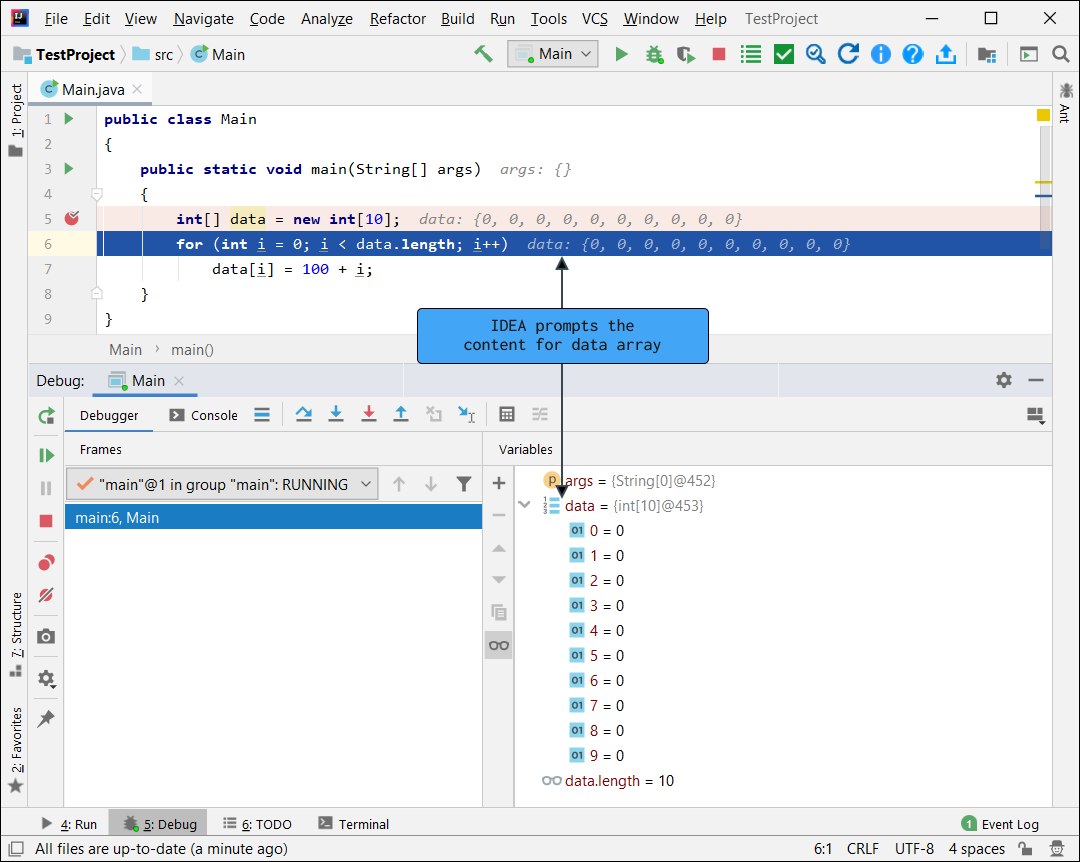
IntelliJ IDEA is smart enough to display the values of important variables right above the code. In our case, we're talking about the data array variable

Also, at the bottom of the screenshot, we see the Debugger tab open (not Console ). It displays all variables (along with their values) that are known at this place in the program.
If you press F8 10 times, then you will do 5 iterations through the loop (one press for the loop header and one for the loop body). Then you'll get a result like this:

We've completed 5 out of 10 iterations of the loop, and you can see that the data array already has 5 values: 100, 101, 102, 103 and 104.
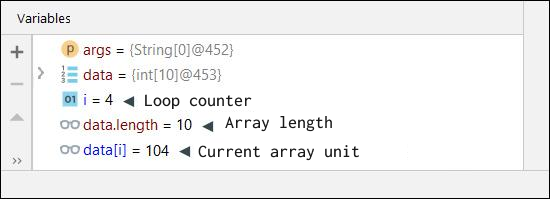
By the way, if you collapse the contents of the array, you can see some more useful variables:
2. Changing the values of variables
By the way, if you want to test how your program will behave given certain values of variables, you can simply change the value of any variable right while the program is running (in debug mode).
To do this, right-click on the variable's name or press F2:

Then simply enter the variable's new value and press Enter and that's it:

You just learned at most 5% of all IntelliJ IDEA features. Once you've mastered these, we'll talk about the rest.
3. Executing a snippet of code
You can also execute arbitrary code at any time while your program is running. This is done using the Alt+F8 key combination or the corresponding item in the context menu:

A special window will open where you can write any code, and that code can use any variables known at the current location in the program's execution!
You can call any methods, say, to make the program display some text on the screen without interrupting its work! Example:


GO TO FULL VERSION